Blithe has its very own custom plugin made by PoeticRainbow that gives our players the ability to create Display Entities in Survival mode!
What are Display Entities?
Display Entities are a type of commands-only entity in Vanilla Minecraft. They are super lag-friendly since they do not tick! This makes them much more ideal than Armor Stands for detailing your base.
There are three distinct types of Display Entities:
- Item
- Block
- Text
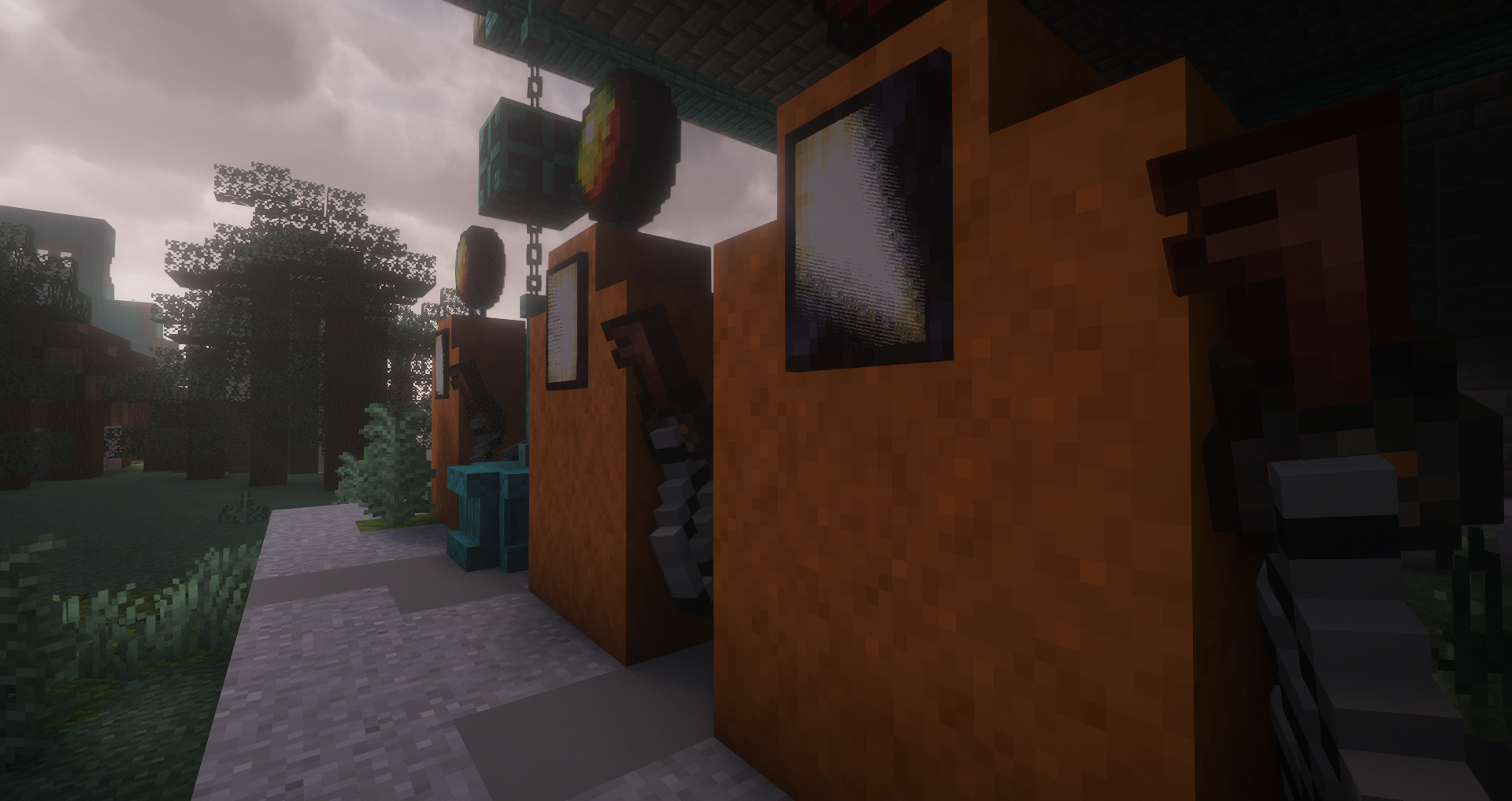
The creative freedom and opportunities are endless! You can create custom furniture, decals, shop pricing, billboards -- the only limit is your imagination.
How Do I Use SurvivalDisplay?
To get started using the plugin, you need a Feather. This is your Display Editor tool.
Next you will need a Display Entity, created by:
- Right-clicking on a filled Item Frame with a Feather to turn it into an Item Display
- Breaking a block with a Feather in either hand to create a Block Display
- Right-click with a Feather on a Sign to create a Text Display
In order to edit a Display, you must use the Feather to select it. By right-clicking while standing nearby Displays, you will either select the nearest Display or open up a Selection GUI where you can see all nearby Displays in a couple block radius.
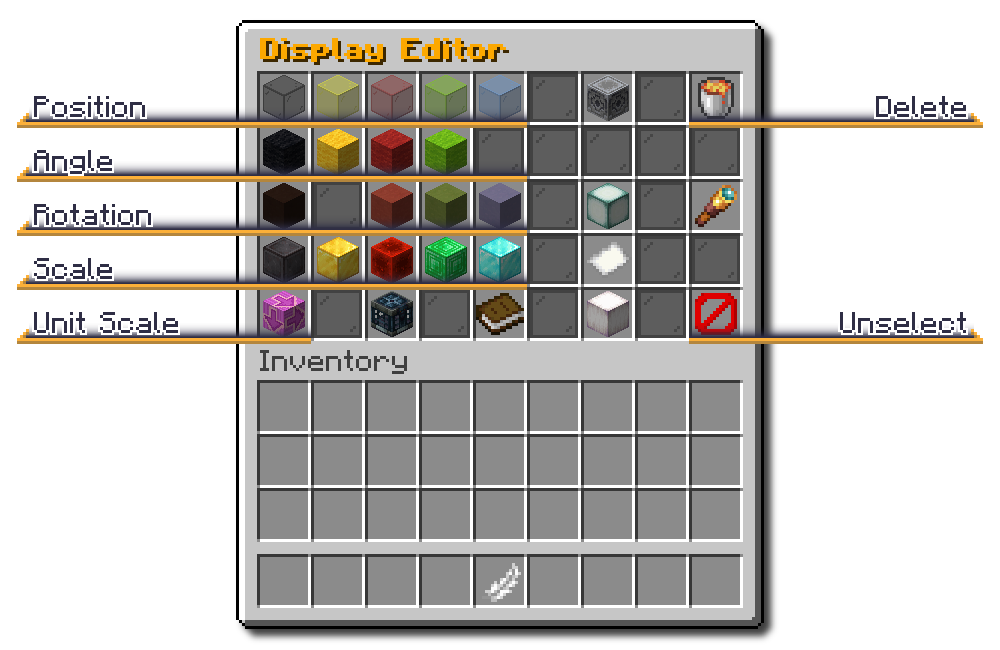
Each button in the GUI has button prompts in the tooltip that tell you what each action will do. The magnitude of your edits can be controlled with the Unit scale in the bottom left of the Editor GUI (the Magenta Glazed Terracotta). This unit is reset upon closing the Editor GUI.
These are the basic actions supported by most buttons:
- Left-Click: increase the value by the given unit
- Shift-Left-Click: increase the value by 1/4 of the given unit
- Right-Click: decrease the value by the given unit, or 1/4 the unit if holding Shift
- Shift-Right-Click: decrease the value by 1/4 of the given unit
.png)
Players should use this mod responsibly — staff reserve the right to ask players to change or remove displays that impact game play.
Editing In The World
The Feather will let you change the position of a Display Entity without opening the GUI as long as you have the Display Entity selected.
You can:
- Sneak + Right-Click the ground to move the selected Display to the clicked block position
- Pick Block (default Middle Click) to move the selected Display to your exact crosshair position (useful for Block Displays)
- Sneak + Pick Block (default Middle Click) to move the selected Display 0.5 blocks above your crosshair position (useful for Item and Text Displays)
Tips For Usage
- When you are done editing a Display, open the Editor GUI and click the Barrier to deselect the Display.
- The Editor GUI is a Chest GUI. You must make sure you can see the Display you are trying to edit on the side of your screen so it will not be blocked by the GUI itself.
- You can use the Clipboard function to copy and paste your edits from one Display Entity to another. This is the Paper inside the Editor GUI. When you have attributes copied, any new Display Entities you create will automatically be pasted onto. This allows you to create a bunch of Displays easily.
- You must clear your Clipboard when you are done. You can do this via the Paper in the Editor GUI or by doing /display clearclipboard
A Helpful Command For In-game help
Use this command to see in-game information about how to use the plugin